Monday, December 1, 2025

MacBook Pro 13" Retina Display Late 2013 Keyboard Replacement MacBook Pro 13" Retina Display Late 2013 键盘更换 - iFixit 维修指南


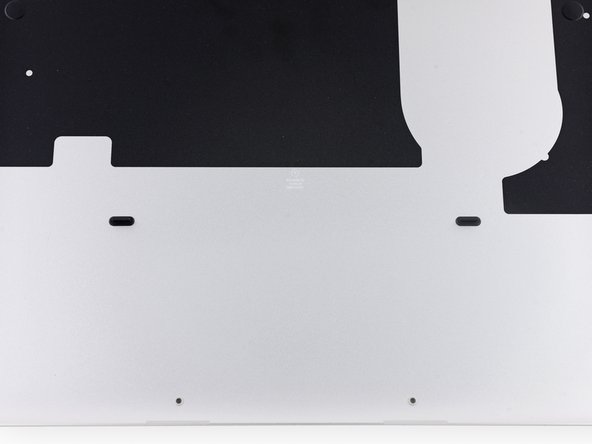
  1. MacBook Pro 13" Retina Display Late 2013 Keyboard Replacement, Lower Case: 步骤 1 中的图像 1,1

    • Remove the following ten screws securing the lower case to the upper case:
      移除以下十颗固定下壳到上壳的螺丝:

    • Two 2.3 mm P5 Pentalobe screws
      两个 2.3 mm P5 Pentalobe 螺丝

    • Eight 3.0 mm P5 Pentalobe screws
      八个 3.0 毫米 P5 五角星螺丝

    • Throughout this repair, keep track of each screw and make sure it goes back exactly where it came from to avoid damaging your device.
      在整个维修过程中,请跟踪每个螺丝,并确保将其放回原来的位置,以避免损坏您的设备。

  2. MacBook Pro 13" Retina Display Late 2013 Keyboard Replacement: 步骤 2 中的图像 1,1
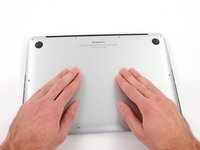
    • Wedge your fingers between the upper case and the lower case.
      将手指卡在上下壳之间。

    • Gently pull the lower case away from the upper case to remove it.
      轻轻将下壳从上壳拉开以将其移除。

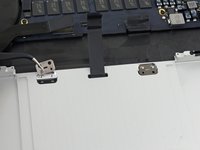
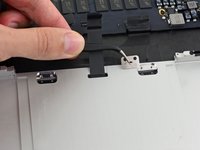
  3. MacBook Pro 13" Retina Display Late 2013 Keyboard Replacement: 步骤 3 中的图像 2,2
    • The lower case is connected to the upper case with two plastic clips near its center.
      下壳通过其中心附近的两个塑料卡扣与上壳连接。

    • During reassembly, gently push down the center of the lower case to reattach the two plastic clips.
      在重新组装时,轻轻按下下壳的中心以重新安装两个塑料卡扣。

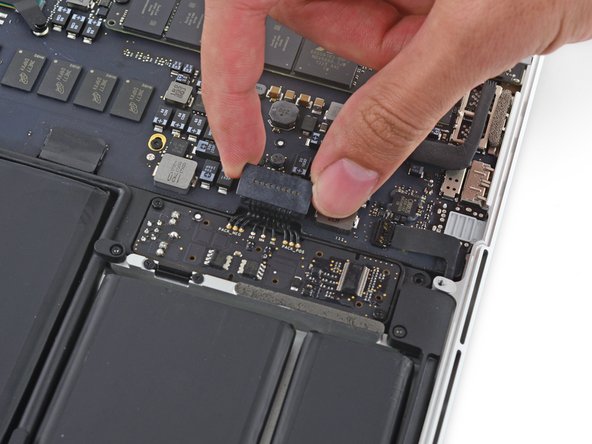
  4. MacBook Pro 13" Retina Display Late 2013 Keyboard Replacement, Battery Connector: 步骤 4 中的图像 1,1
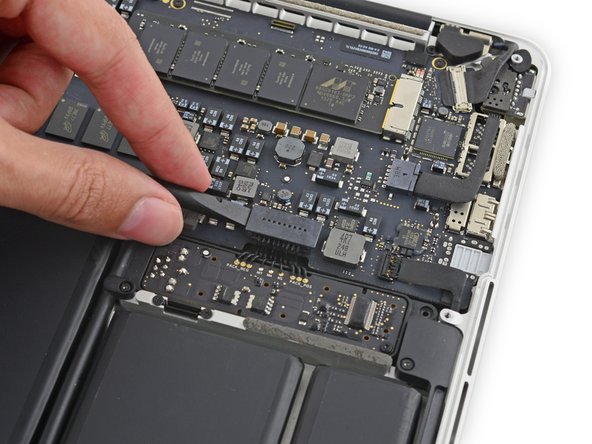
    • If necessary, remove the plastic cover adhered to the battery contact board.
      如有必要,请移除粘附在电池接触板上的塑料盖。

  5. MacBook Pro 13" Retina Display Late 2013 Keyboard Replacement: 步骤 5 中的图像 2,2
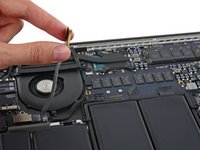
    • Use the flat end of a spudger to lift the battery connector straight up out of its socket on the logic board.
      使用撬棒扁平端将电池连接器从逻辑板上的插座中直接向上撬起。

    • Be sure you lift up only on the connector itself, not the socket, or you risk permanent damage to the logic board.
      确保你只抬起连接器本身,而不是插座,否则你可能会损坏逻辑板。

    MacBook Pro 13" Retina Display Late 2013 Keyboard Replacement: 步骤 6 中的图像 1,1
    • Bend the battery connector up out of the way to prevent accidental contact with its socket during your repair.
      将电池连接器向上弯曲,使其在维修过程中不会意外接触其插座。

  6. MacBook Pro 13" Retina Display Late 2013 Keyboard Replacement, Right Speaker: 步骤 7 中的图像 1,1
    • Remove the two 2.1 mm T5 Torx screws securing the logic board end of the I/O board cable bracket.
      移除固定 I/O 板电缆支架逻辑板端的两个 2.1 毫米 T5 Torx 螺丝。

  7. MacBook Pro 13" Retina Display Late 2013 Keyboard Replacement: 步骤 8 中的图像 1,1
    在这个步骤中使用的工具:
    Tweezers  镊子
    $4.99
    • Grasp the I/O board cable bracket with a pair of tweezers and remove it from the MacBook.
      用镊子夹住 I/O 板电缆支架并将其从 MacBook 中取出。

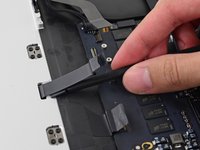
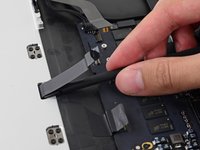
  8. MacBook Pro 13" Retina Display Late 2013 Keyboard Replacement: 步骤 9 中的图像 1,2
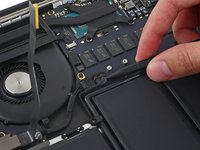
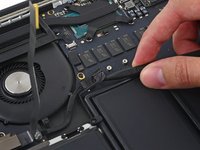
    • Use the flat end of a spudger to pop the I/O board connector straight up off its socket on the logic board.
      使用撬棒扁平端将 I/O 板连接器从逻辑板上的插座中向上撬起。

    • Be careful to only pry up on the I/O board cable, not on the socket itself or you risk damaging your logic board.
      小心只撬起 I/O 板电缆,不要撬插座本身,否则你可能会损坏你的逻辑板。

    MacBook Pro 13" Retina Display Late 2013 Keyboard Replacement: 步骤 10 中的图像 2,2
    • Lift the logic board end of the I/O board cable straight up to bend it out of the way.
      将 I/O 板电缆的逻辑板端直接向上抬起,使其弯曲移开。

    • To avoid damage to the cable, fold only at the bend in the I/O board end of the cable.
      为了避免损坏线缆,只在 I/O 板一端的线缆弯曲处折叠。

  9. MacBook Pro 13" Retina Display Late 2013 Keyboard Replacement: 步骤 11 中的图像 2,2
    • Carefully tuck the tip of a spudger under the right speaker cable near the connector and lift it up out of its socket on the logic board.
      小心地将一支撬棒尖端塞入右侧扬声器线缆靠近连接器处,并将其从逻辑板上的插座中撬起。

    MacBook Pro 13" Retina Display Late 2013 Keyboard Replacement: 步骤 12 中的图像 3,3
    • Carefully peel the right speaker cable off the upper case.
      小心地将右侧扬声器线从上壳上剥下。

  10. MacBook Pro 13" Retina Display Late 2013 Keyboard Replacement: 步骤 13 中的图像 1,1
    • Remove the following screws securing the right speaker to the upper case:
      移除固定右扬声器的以下螺丝,将其与上壳分离:

    • One 5.7 mm T5 Torx screw
      一个 5.7 毫米 T5 十字螺丝

    • One 6.5 mm T5 Torx screw
      一个 6.5 毫米 T5 十字螺丝

    • One 3.8 mm T5 Torx screw
      一个 3.8 毫米 T5 十字螺丝

  11. MacBook Pro 13" Retina Display Late 2013 Keyboard Replacement: 步骤 14 中的图像 1,3
    • Lift the right speaker from the cable end and pull it free from the case.
      将右侧扬声器从线缆端抬起,并将其从机壳中拉出。

  12. MacBook Pro 13" Retina Display Late 2013 Keyboard Replacement, Left Speaker: 步骤 15 中的图像 1,2
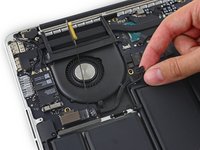
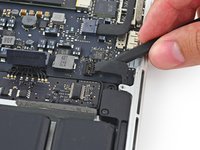
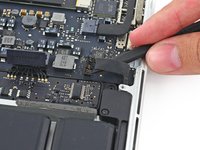
    • Insert the tip of a spudger under the left speaker cable near the connector and lift it up out of its socket on the logic board.
      将一支 spudger 的尖端插入到靠近连接器的左侧扬声器电缆下方,并将其从逻辑板上的插座中提起。

    • Be careful not to damage any surface-mounted components.
      小心不要损坏任何表面贴装元件。

    MacBook Pro 13" Retina Display Late 2013 Keyboard Replacement: 步骤 16 中的图像 1,1
    • Remove the following screws securing the left speaker to the upper case:
      移除以下固定左扬声器的螺丝,将其与上壳连接:

    • One 5.7 mm T5 Torx screw
      一个 5.7 毫米 T5 十字螺丝

    • One 6.5 mm T5 Torx screw
      一个 6.5 毫米 T5 十字螺丝

    • One 3.8 mm T5 Torx screw
      一个 3.8 毫米 T5 十字螺丝

  13. MacBook Pro 13" Retina Display Late 2013 Keyboard Replacement: 步骤 17 中的图像 1,3
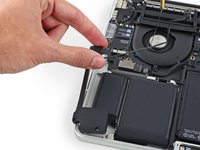
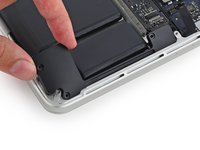
    • Lift the corner of the left speaker up and slide it out around the battery to remove it from the upper case.
      抬起左侧扬声器的角落,并将其向电池方向滑出,以将其从上壳中取出。

    • Be careful not to snag the speaker cable on the screw hole post in the side of the case.
      小心不要让扬声器线缆勾到机箱侧面的螺丝孔柱上。

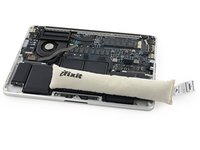
  14. MacBook Pro 13" Retina Display Late 2013 Keyboard Replacement, iOpener Heating: 步骤 18 中的图像 1,2
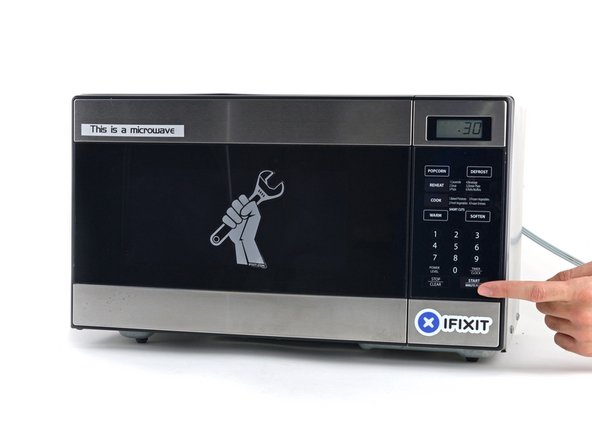
    • We recommend that you clean your microwave before proceeding, as any nasty gunk on the bottom may end up stuck to the iOpener.
      我们建议在继续操作前清洁您的微波炉,因为底部任何黏腻的污垢可能会粘在 iOpener 上。

    • Place the iOpener in the center of the microwave.
      将 iOpener 放在微波炉的中央。

    • For carousel microwaves: Make sure the plate spins freely. If your iOpener gets stuck, it may overheat and burn.
      对于旋转盘式微波炉:确保托盘能自由旋转。如果 iOpener 被卡住,可能会过热并烧毁。

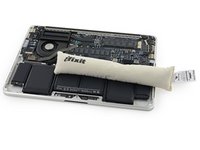
  15. MacBook Pro 13" Retina Display Late 2013 Keyboard Replacement: 步骤 19 中的图像 1,1
    • Heat the iOpener for thirty seconds.
      将 iOpener 加热三十秒。

    • Depending on the wattage of your microwave, more or less time may be required. The iOpener is sufficiently heated when it's barely too hot to touch.
      根据你的微波炉功率,所需时间可能有所不同。当 iOpener 热到几乎无法触摸时,就足够加热了。

    • Throughout the repair procedure, as the iOpener cools, reheat it in the microwave for an additional thirty seconds at a time.
      在整个维修过程中,随着 iOpener 冷却,每次在微波炉中再加热 30 秒。

    • Be careful not to overheat the iOpener during the repair. Overheating may cause the iOpener to burst. Do not attempt to heat over 100˚C (212˚F).
      维修过程中要小心不要让 iOpener 过度加热。过度加热可能导致 iOpener 爆裂。不要尝试加热超过 100℃(212°F)。

    • Never touch the iOpener if it appears swollen.
      如果 iOpener 看起来鼓胀,切勿触摸。

    • If the iOpener is still too hot in the middle to touch, continue using it while waiting for it to cool down some more before reheating. A properly heated iOpener should stay warm for up to 10 minutes.
      如果 iOpener 中间部分仍然太热无法触摸,请继续使用它,等待它再冷却一些后再重新加热。一个正确加热的 iOpener 应能保持温暖长达 10 分钟。

    MacBook Pro 13" Retina Display Late 2013 Keyboard Replacement: 步骤 20 中的图像 1,1
    • Remove the iOpener from the microwave, holding it by one of the two flat ends to avoid the hot center.
      从微波炉中取出 iOpener,用手握住其中一端扁平处,避免接触热中心。

    • The iOpener will be very hot, so be careful when handling it. Use an oven mitt if necessary.
      iOpener 会非常热,所以处理时要小心。必要时使用烤箱手套。

  16. MacBook Pro 13" Retina Display Late 2013 Keyboard Replacement, Alternate iOpener heating method: 步骤 21 中的图像 1,2
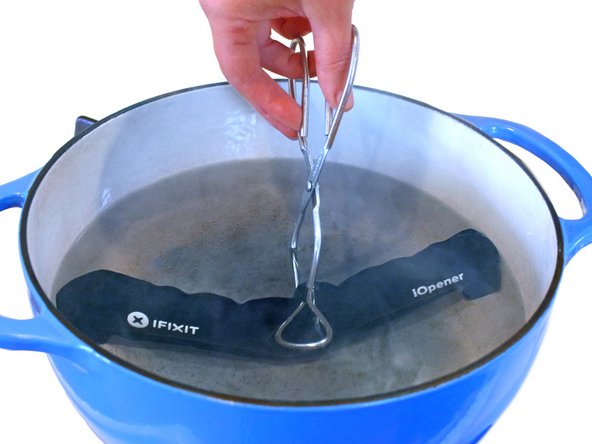
    • If you don't have a microwave, follow this step to heat your iOpener in boiling water.
      如果你没有微波炉,请按照此步骤将 iOpener 放入沸水中加热。

    • Fill a pot or pan with enough water to fully submerge an iOpener.
      在锅中或平底锅中加入足够多的水,完全浸没一个 iOpener。

    • Heat the water to a boil. Turn off the heat.
      将水烧开。关火。

    • Place an iOpener into the hot water for 2-3 minutes. Make sure the iOpener is fully submerged in the water.
      将 iOpener 放入热水中 2-3 分钟。确保 iOpener 完全浸没在水中。

    • Use tongs to extract the heated iOpener from the hot water.
      用镊子将加热后的 iOpener 从热水中取出。

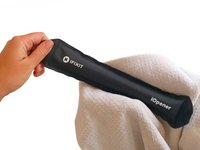
    • Thoroughly dry the iOpener with a towel.
      用毛巾彻底擦干 iOpener。

    • The iOpener will be very hot, so be careful to hold it only by the end tabs.
      iOpener 会非常烫,因此要小心只用手柄端部的标签来拿取。

    • Your iOpener is ready for use! If you need to reheat the iOpener, heat the water to a boil, turn off the heat, and place the iOpener in the water for 2-3 minutes.
      您的 iOpener 已准备好使用!如果您需要重新加热 iOpener,将水烧开,关闭热源,并将 iOpener 放入水中 2-3 分钟。

  17. MacBook Pro 13" Retina Display Late 2013 Keyboard Replacement, Battery: 步骤 22 中的图像 1,1
    • Remove the five 3.7 mm T5 Torx screws securing the battery to the upper case.
      拧下固定电池到上壳的五个 3.7 毫米 T5 扭丝螺丝。

    • Your specific unit may only have one screw securing the battery's circuit board to the frame.
      您的具体设备可能只有一颗螺丝固定电池的电路板到机架。

  18. MacBook Pro 13" Retina Display Late 2013 Keyboard Replacement: 步骤 23 中的图像 1,1
    • The liquid adhesive remover provided in your iFixit battery replacement kit can affect the antireflective coating on your MacBook Pro's display.
      你 iFixit 电池更换套件中提供的液体粘合剂去除剂可能会影响你的 MacBook Pro 显示屏的抗反射涂层。

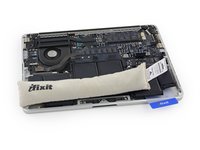
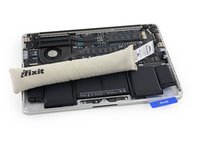
    • To protect your display, place a sheet of aluminum foil between the display and keyboard and leave it there while you work.
      为了保护您的显示屏,在显示屏和键盘之间放置一张铝箔,并在您操作时保持其位置。

  19. MacBook Pro 13" Retina Display Late 2013 Keyboard Replacement: 步骤 24 中的图像 1,2
    • If you have an iFixit battery kit with liquid adhesive remover, it's time to get it prepped.
      如果你有一个 iFixit 电池套件且带有液体粘合剂去除剂,现在是准备它的时候了。

    • Alternatively, if you are using the hot iOpener method, skip the following three steps.
      或者,如果你使用的是热 iOpener 方法,可以跳过以下三个步骤。

    • iFixit adhesive remover contains acetone, a mild skin and eye irritant.
      iFixit 粘合剂去除剂含有丙酮,这是一种温和的皮肤和眼睛刺激物。

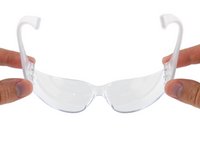
    • Wear eye protection when handling and applying the adhesive remover. (Eye protection is included in your kit.)
      使用和处理粘合剂去除剂时请佩戴护目镜。(护目镜包含在你的工具包中。)

    • Do not wear contact lenses without eye protection.
      不佩戴护目镜时不要佩戴隐形眼镜。

    • Protective gloves are also included in your kit. If you are concerned about skin irritation, put your gloves on now.
      保护手套也包含在你的工具包中。如果你担心皮肤刺激,现在就戴上手套。

  20. MacBook Pro 13" Retina Display Late 2013 Keyboard Replacement: 步骤 25 中的图像 1,3
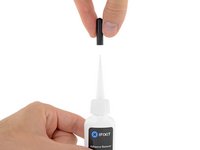
    • Pull off the black rubber stopper from your bottle of adhesive remover.
      从你的粘合剂去除剂瓶上撕下黑色橡胶塞。

    • Twist to loosen or remove the bottle cap before you cut the applicator tip.
      在剪掉施用器尖端之前,先旋转松动或取下瓶盖。

    • This unseals the bottle and allows the pressure to equalize before you cut the applicator tip. If you skip this step, the adhesive remover may spray out unexpectedly when the tip is cut.
      这样做可以打开瓶子,使压力在剪掉施用器尖端前平衡。如果跳过这一步,当剪掉尖端时,粘合剂去除剂可能会意外喷出。

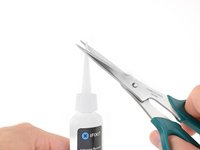
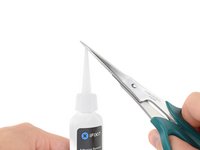
    • Use scissors to cut off the sealed tip of the applicator.
      用剪刀剪掉施用器密封的尖端。

    • Cutting close to the narrow tip will give you better control so you can apply the adhesive remover in small amounts.
      靠近狭窄的尖端剪裁能让你更好地控制,可以少量地应用粘合剂去除剂。

    • Twist and close the bottle cap securely before you proceed further.
      %% 在继续之前,将瓶盖拧紧并关闭。

    MacBook Pro 13" Retina Display Late 2013 Keyboard Replacement: 步骤 26 中的图像 1,1
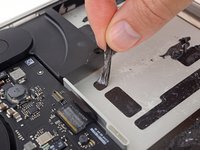
    • Apply a few drops of adhesive remover evenly under the edge of the rightmost battery cell.
      在右 most 电池单元的边缘下方均匀滴加几滴粘合剂去除剂。

    • You don't need to use very much. The small bottle contains more than twice the amount of solvent needed to remove all the battery cells.
      不需要用太多。小瓶中的溶剂含量超过移除所有电池单元所需的两倍。

    • Wait 2-3 minutes for the liquid adhesive remover to penetrate underneath the battery cell before you proceed to the next step.
      等待 2-3 分钟,让液体粘合剂去除剂渗透到电池单元下方,然后再进行下一步。

    • Use more adhesive remover if needed, but do not apply more than a few drops at a time. Using too much can allow the adhesive remover to make its way to the backside of your keyboard and potentially damage it.
      如果需要,使用更多粘合剂去除剂,但每次不要超过几滴。使用过多可能会导致粘合剂去除剂流到键盘背面,并可能损坏它。

  21. MacBook Pro 13" Retina Display Late 2013 Keyboard Replacement: 步骤 27 中的图像 1,2
    • If you don't have a liquid adhesive remover, you'll be using a hot iOpener to warm and soften a section of the adhesive securing the battery to the upper case, and then carefully prying at that point.
      如果你没有液体粘合剂去除剂,你将使用一个热的 iOpener 来加热并软化固定电池到上壳的粘合剂部分,然后小心地在那一点撬开。

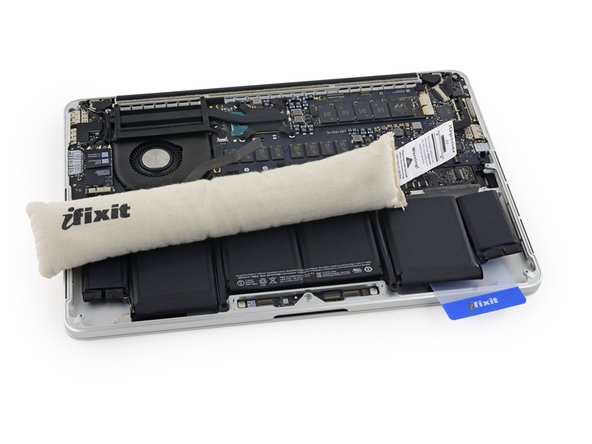
    • Use the hot iOpener to cover half of the two right-most battery cells.
      使用热的 iOpener 覆盖最右边的两个电池单元的一半。

    • After about a minute, reheat the iOpener and move it to cover the other half of the right-most battery cells.
      大约一分钟后,重新加热 iOpener 并将其移动到覆盖最右边的两个电池单元的另一半。

  22. MacBook Pro 13" Retina Display Late 2013 Keyboard Replacement: 步骤 28 中的图像 1,2
    在这个步骤中使用的工具:
    Plastic Cards  塑料卡片
    $2.99
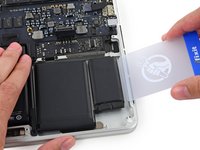
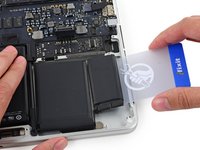
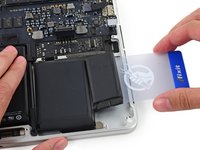
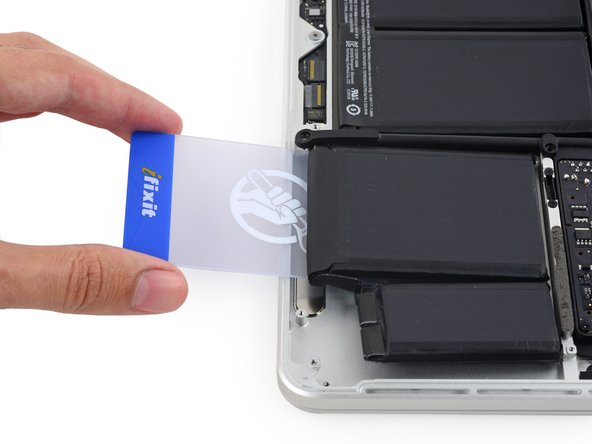
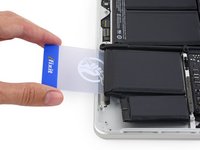
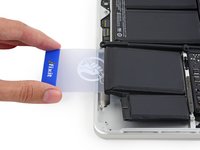
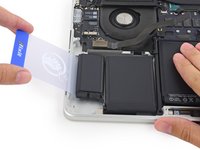
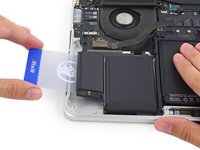
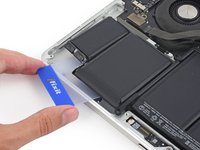
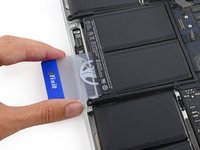
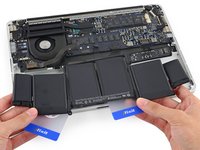
    • Push a plastic card between the right-most battery cell and the upper case, cutting the adhesive between the two.
      在右端电池单元和上壳之间插入一张塑料卡片,切断两者之间的粘合剂。

    • Throughout this procedure, be careful not to damage any of the battery cells with your tools. A damaged lithium-ion battery may leak dangerous chemicals and/or catch fire. Use only plastic pry tools.
      在整个过程中,小心不要用工具损坏任何电池单元。受损的锂离子电池可能会泄漏危险化学物质和/或起火。仅使用塑料撬棒。

    • When using the hot iOpener method, if you encounter significant resistance to prying, stop and use the iOpener to reheat the section you're working on.
      在使用热 iOpener 方法时,如果你在撬动时遇到显著阻力,停止并使用 iOpener 重新加热你正在处理的区域。

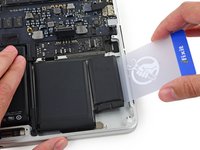
  23. MacBook Pro 13" Retina Display Late 2013 Keyboard Replacement: 步骤 29 中的图像 1,2
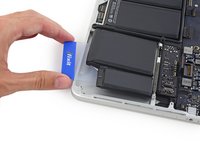
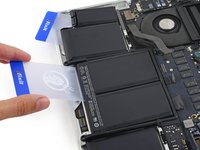
    • Use the plastic card to pry the right-most battery cell up from the rear case.
      用塑料卡片将最右端的电池单元从后壳向上撬起。

  24. MacBook Pro 13" Retina Display Late 2013 Keyboard Replacement: 步骤 30 中的图像 1,3
    • Repeat this procedure with the adjacent battery cell:
      对相邻的电池单元重复此步骤:

    • Apply a small amount of liquid adhesive remover under the battery cell, and wait 2-3 minutes for it to penetrate and soften the adhesive.
      在电池单元下方涂抹少量液体粘合剂去除剂,等待 2-3 分钟使其渗透并软化粘合剂。

    • Alternatively, re-heat this section with your iOpener if needed.
      或者,如有需要,用 iOpener 重新加热此区域。

    • Push a plastic card about an inch between the battery cell and the upper case, and slowly pry the cell up to separate all of the adhesive.
      将一张塑料卡片(约一英寸宽)插入电池单元和上壳之间,慢慢撬起电池单元以分离所有粘合剂。

  25. MacBook Pro 13" Retina Display Late 2013 Keyboard Replacement: 步骤 31 中的图像 1,3
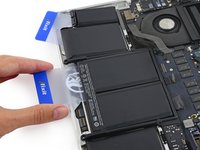
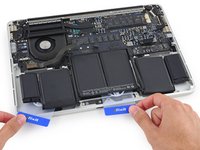
    • Temporarily leave your plastic card underneath the two rightmost battery cells to prevent them from re-adhering to the upper case.
      暂时将你的塑料卡留在最右边的两个电池单元下面,以防止它们重新粘合到上壳。

    • If using an iOpener, reheat it and reapply it, this time to the left-most battery cells.
      如果使用 iOpener,重新加热并重新涂抹,这次涂抹在最左边的电池单元上。

    • Again, leave the iOpener in each position for about a minute, reheating in between, to heat each half of the left-most battery cells.
      同样,将 iOpener 保持在每个位置约一分钟,中间重新加热,以加热最左边电池单元的每一半。

  26. MacBook Pro 13" Retina Display Late 2013 Keyboard Replacement: 步骤 32 中的图像 1,3
    • Repeat the above procedure to separate the two leftmost battery cells from the upper case.
      重复上述步骤,将最左侧的两个电池单元与上壳分离。

    • Remember to apply a small amount of adhesive remover to each battery cell, and wait 2-3 minutes for it to penetrate and soften the adhesive.
      记得在每个电池单元上涂抹少量粘合剂去除剂,并等待 2-3 分钟,让它渗透并软化粘合剂。

    • Use a second plastic card to separate the two leftmost battery cells from the upper case.
      使用第二张塑料卡片将最左侧的两个电池单元与上壳分离。

  27. MacBook Pro 13" Retina Display Late 2013 Keyboard Replacement: 步骤 33 中的图像 1,1
    • Leave the second card in the corner between the two left cells.
      将第二张卡片留在两个左侧单元之间的角落里。

    • In the following steps, you can either use a third card, or the card from the right corner. The right corner adhesive should be dry/cool enough that the cells can easily be pulled up again when needed.
      在接下来的步骤中,你可以使用第三张卡片,或者使用右下角的卡片。右下角的粘合剂应该足够干/凉,以便在需要时可以轻松地将电池单元拉起。

  28. MacBook Pro 13" Retina Display Late 2013 Keyboard Replacement: 步骤 34 中的图像 1,2
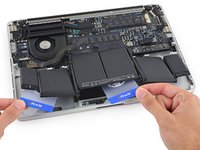
    • To separate the adhesive securing the final two, middle battery cells, apply a few more drops of liquid adhesive remover (or your iOpener) to each cell.
      要分离固定最后两个、中间电池单元的粘合剂,向每个电池单元滴加几滴液体粘合剂去除剂(或使用你的 iOpener)。

    • Apply the adhesive remover sparingly, since the trackpad lies beneath this area of the battery.
      少量使用粘合剂去除剂,因为触控板位于电池的下方区域。

    • It may help to elevate one side of your MacBook Pro a few inches so that the adhesive remover flows in the correct direction, underneath the battery cells. You can use a sturdy book or foam block to prop up one side of your MacBook Pro while you work.
      将 MacBook Pro 的一侧抬高几英寸可能有助于粘合剂去除剂正确流向电池下方。您可以使用一本坚固的书或泡沫块来支撑 MacBook Pro 的一侧,以便工作。

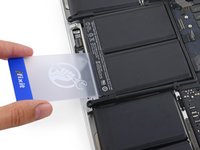
    • Insert the card about an inch between the left-center battery cell and the upper case, separating the adhesive between the cell and the case.
      将卡片插入左中部电池单元和上壳之间约一英寸处,分离单元和壳之间的粘合剂。

  29. MacBook Pro 13" Retina Display Late 2013 Keyboard Replacement: 步骤 35 中的图像 1,2
    • Pull the card back out and insert it about an inch between the right-center battery cell and the upper case, separating the adhesive between the cell and case.
      抽出卡片,然后将卡片插入右中部电池单元和上壳之间约一英寸处,分离单元和壳之间的粘合剂。

  30. MacBook Pro 13" Retina Display Late 2013 Keyboard Replacement: 步骤 36 中的图像 1,2
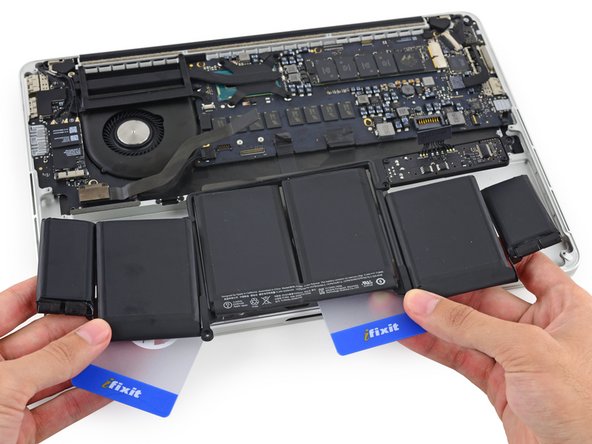
    • By this point, the outer cells should be free, and you should only encounter resistance from the two center cells. If this is not the case, go back and completely loosen the four outer-most cells from the upper case.
      此时,外层单元格应该已经松开,你只会遇到中间两个单元格的阻力。如果情况不是这样,请回去将上壳最外层的四个单元格完全松开。

    • Pry up on the two center cells to separate the last of the adhesive and lift the battery from the device.
      撬起两个中间的单元格,分离最后一点粘合剂,将电池从设备中取出。

  31. MacBook Pro 13" Retina Display Late 2013 Keyboard Replacement: 步骤 37 中的图像 1,2
    • Remove the battery.  移除电池。

    • Before installing your new battery, remove all the old adhesive from the MacBook Pro's case.
      在安装新电池之前,请从 MacBook Pro 的壳上清除所有旧粘合剂。

    • With a little luck, you can slowly pull out each strip of adhesive with your fingers.
      稍加运气,你可以用手指慢慢撕下每一条胶带。

    • Otherwise, soak each section of adhesive with a bit of adhesive remover for 2-3 minutes, and then scrape it out with an opening pick or one of the other tools in your kit. This can take quite a bit of work, so be patient.
      否则,用少量胶水去除剂浸泡每个胶带区域 2-3 分钟,然后用开口撬棒或工具包中的其他工具将其刮除。这可能需要大量工作,所以要有耐心。

    • Mop up any remaining adhesive remover and give your MacBook Pro a few minutes to air dry.
      擦掉任何剩余的胶水去除剂,让你的 MacBook Pro 晾干几分钟。

    • The replacement battery included in your iFixit kit comes with adhesive pre-installed. Test the battery's fit and alignment carefully before peeling off the film covering the adhesive, and then press each cell firmly into place. If any additional films/liners are present that weren't on your original battery, remove them now.
      你 iFixit 工具包中附带的替换电池已经预装了胶水。在撕下覆盖胶水的薄膜之前,仔细测试电池的贴合度和对齐情况,然后将每个电池单元牢固地按压到位。如果原电池上没有的额外薄膜/衬垫现在存在,请现在将其移除。

    • Calibrate your newly installed battery: charge it to 100%, and keep charging it for at least 2 more hours. Unplug and use it normally to drain the battery. When you see the low battery warning, save your work, and keep your laptop on until it goes to sleep due to low battery. Wait at least 5 hours, then charge your laptop uninterrupted to 100%.
      校准新安装的电池:将其充电至 100%,并继续充电至少 2 小时。断开电源并正常使用以耗尽电池。当出现低电量警告时,保存你的工作,并保持笔记本电脑开启直到因低电量进入睡眠状态。等待至少 5 小时,然后不间断地将笔记本电脑充电至 100%。

    • If you notice any unusual behavior or problems after installing your new battery, you may need to reset your MacBook Pro's SMC.
      如果在安装新电池后发现任何异常行为或问题,你可能需要重置你的 MacBook Pro 的 SMC。

  32. MacBook Pro 13" Retina Display Late 2013 Keyboard Replacement, Trackpad: 步骤 38 中的图像 1,1
    • Place a reheated iOpener over the trackpad cover plate to soften the adhesive securing it to the upper case.
      将重新加热的 iOpener 放在跟踪板盖板上,以软化固定在上壳上的粘合剂。

    • Be careful not to overheat the iOpener during the repair. Always wait at least two minutes before reheating the iOpener.
      修理过程中注意不要让 iOpener 过热。重新加热 iOpener 前,请至少等待两分钟。

  33. MacBook Pro 13" Retina Display Late 2013 Keyboard Replacement: 步骤 39 中的图像 1,3
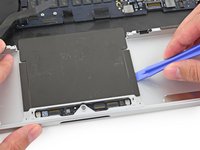
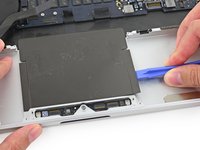
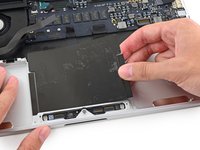
    • Use a plastic opening tool to carefully pry the trackpad cover plate up from the upper case.
      使用塑料撬棒小心地将触控板盖板从上壳撬起。

    • Go slowly and carefully to avoid putting any visible creases in the plate.
      动作要缓慢小心,避免在盖板上留下可见的折痕。

  34. MacBook Pro 13" Retina Display Late 2013 Keyboard Replacement: 步骤 40 中的图像 1,3
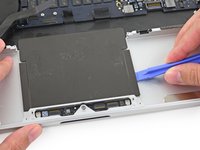
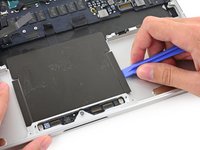
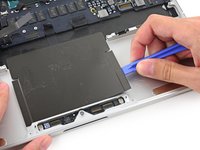
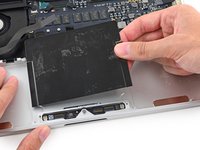
    • Use a plastic opening tool to slowly and carefully peel the trackpad cover plate up off the upper case.
      使用塑料撬棒慢慢小心地将轨迹板盖板从上壳上撬起。

  35. MacBook Pro 13" Retina Display Late 2013 Keyboard Replacement: 步骤 41 中的图像 1,2
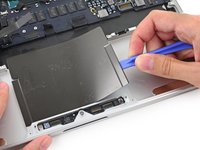
    • Gently peel the plate up to remove it.
      轻轻将挡板向上剥离以取下。

  36. MacBook Pro 13" Retina Display Late 2013 Keyboard Replacement: 步骤 42 中的图像 1,1
    • If necessary, peel back any tape covering the trackpad cable connector.
      如有必要,剥开覆盖触控板线缆连接器的任何胶带。

  37. MacBook Pro 13" Retina Display Late 2013 Keyboard Replacement: 步骤 43 中的图像 1,2
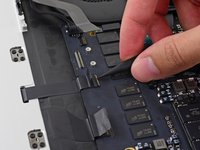
    • Use the tip of a spudger to flip the retaining tab on the ZIF connector.
      使用撬棒尖端翻转 ZIF 连接器的锁定标签。

  38. MacBook Pro 13" Retina Display Late 2013 Keyboard Replacement: 步骤 44 中的图像 1,1
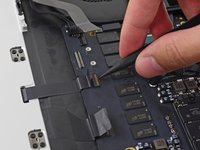
    • Pull the trackpad ribbon cable straight out of its socket on the logic board.
      将触控板排线直接从逻辑板上的插座中拉出。

  39. MacBook Pro 13" Retina Display Late 2013 Keyboard Replacement: 步骤 45 中的图像 1,2
    • Wedge the flat end of a spudger underneath the upper case opening where the trackpad ribbon cable passes is routed through.
      将撬棒扁平端插入触控板排线通过的上壳开口下方。

    • Gently pry the trackpad ribbon cable from the adhesive securing it to the upper case.
      轻轻撬开触控板排线,使其脱离粘合在上壳上的胶。

    • MacBook Pro 13" Retina Display Late 2013 Keyboard Replacement: 步骤 46 中的图像 1,1
    • Remove the following screws securing the trackpad brackets to the trackpad and upper case.
      移除以下固定触控板支架到触控板和上壳的螺丝。

    • Four 2.2 mm T5 Torx screws
      四个 2.2 毫米 T5 十字螺丝

    • Four 1.7 mm T5 Torx screws
      四个 1.7 毫米 T5 十字螺丝

  40. MacBook Pro 13" Retina Display Late 2013 Keyboard Replacement: 步骤 47 中的图像 1,2
    在这个步骤中使用的工具:
    Tweezers  镊子
    $4.99
    • Use tweezers to remove the two trackpad mounting brackets from the upper case.
      使用镊子从上壳中取出两个触控板安装支架。

  41. MacBook Pro 13" Retina Display Late 2013 Keyboard Replacement: 步骤 48 中的图像 1,2
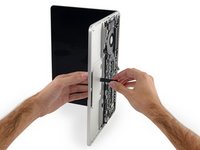
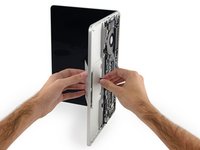
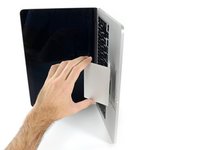
    • To avoid scratching the display, open the computer about 90º and set it on end.
      为了避免刮伤显示屏,将电脑打开约 90º并竖立放置。

    • Carefully guide the trackpad ribbon cable through the slot cut in the upper case.
      小心地将触控板排线电缆引导通过上壳中切割的插槽。

    • This will push the trackpad up out of its recess in the top of the upper case.
      这将把触控板向上推出,离开上壳顶部的凹槽。

    • Guide the trackpad out of the upper casewith your other hand, so it doesn't fall.
      用另一只手引导触控板离开上壳,以免掉落。

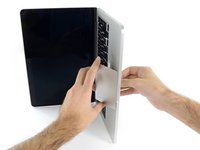
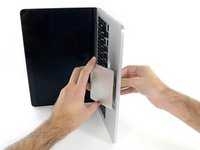
  42. MacBook Pro 13" Retina Display Late 2013 Keyboard Replacement: 步骤 49 中的图像 1,3
    • Gently pull the trackpad away from the upper case, being careful not to snag the ribbon cable.
      轻轻将触控板从上壳上拉起,小心不要勾到排线。

No comments:

Post a Comment